
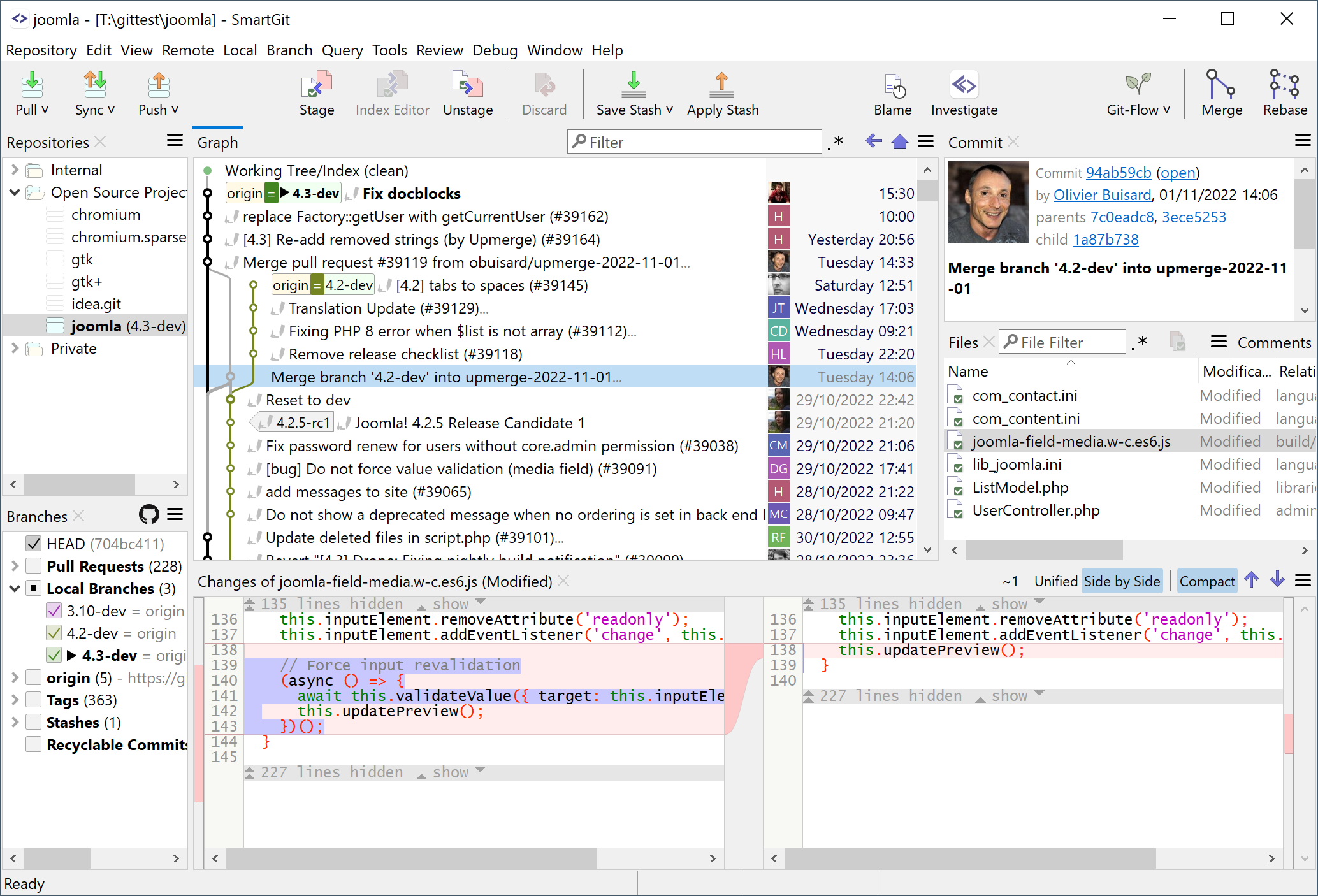

Get your commit done.
SmartGit is the most popular Git GUI client at slant.co.
100,000+ developers around the world trust in SmartGit.
SmartGit supports GitHub, Bitbucket, GitLab and Azure DevOps.
What users say about SmartGit
Ferhat Dogru Thanks SmartGit, we achieved our goal earlier and flawless as butter. Thank you for that great product again!
Daniel Griscom I can't imagine a better way to make sure my changes are consistent and complete.
John Papa Just purchased SmartGit. Absolutely fantastic github tool. Heads and shoulders better than any other I have used.
Why prefer SmartGit as Git Client?
One for All.
SmartGit assists Git newbies as well as it makes experienced developers more productive.
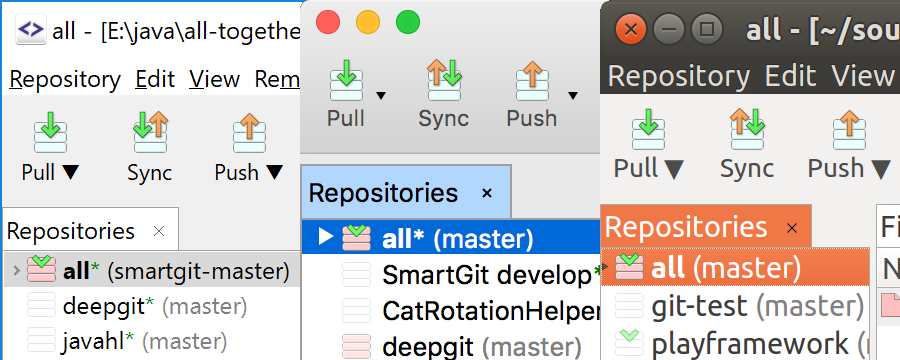
SmartGit has the same intuitive user interface on Windows, macOS and Linux:
- graphical merge and commit history
- drag and drop commit reordering, merging or rebase
- fast, even for larger repositories
Use your SmartGit license on as many machines and operating systems you like.
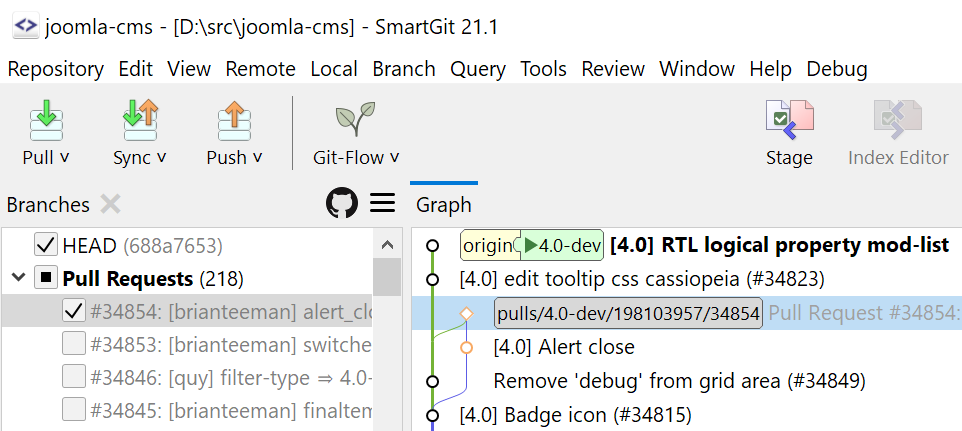
Interacting with popular platforms.
SmartGit comes with special integrations for GitHub, Azure DevOps, BitBucket (as well BitBucket Server) and GitLab to create and resolve Pull Requests and Review Comments.
Of course, you can use SmartGit like any other Git client with your own Git repositories or other hosting providers.
Everything Included.
No need to install and configure additional tools. SmartGit includes all you need:
- intuitive File Compare (no plain wrapper around git diff)
- powerful File Merge (freely editable "Conflict Solver")
- Git-Flow (high-level branch handling)
- graphical Merge and Commit History
- bundled Git client
- SSH-client
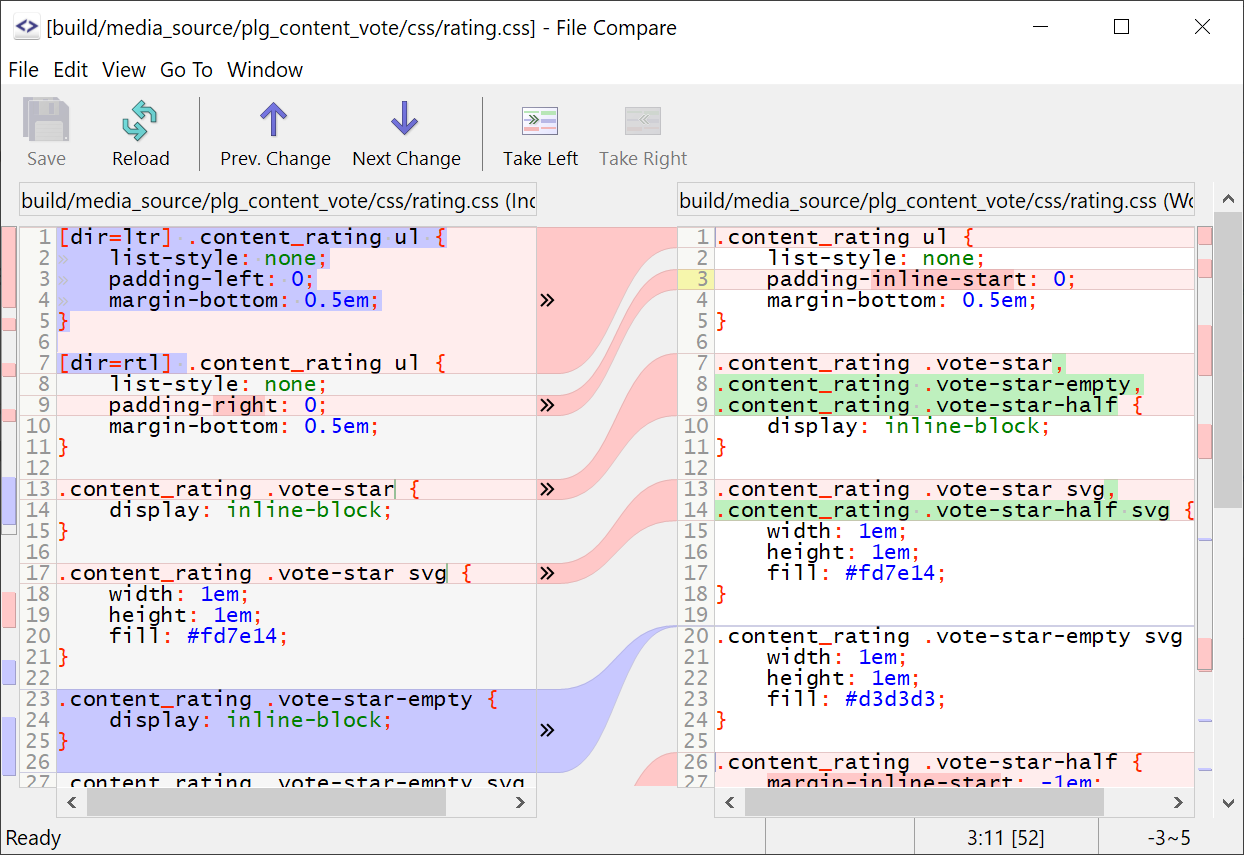
Adopt to Your Needs and Workflows.
A perfect Git client should support your workflows. You can customize SmartGit in various ways:
- Preferences for Merging, Rebasing
- External tools,
- External or built-in Compare or Conflict Solver tools,
- Syntax coloring,
- Keyboard shortcuts,
- Layout of certain views,
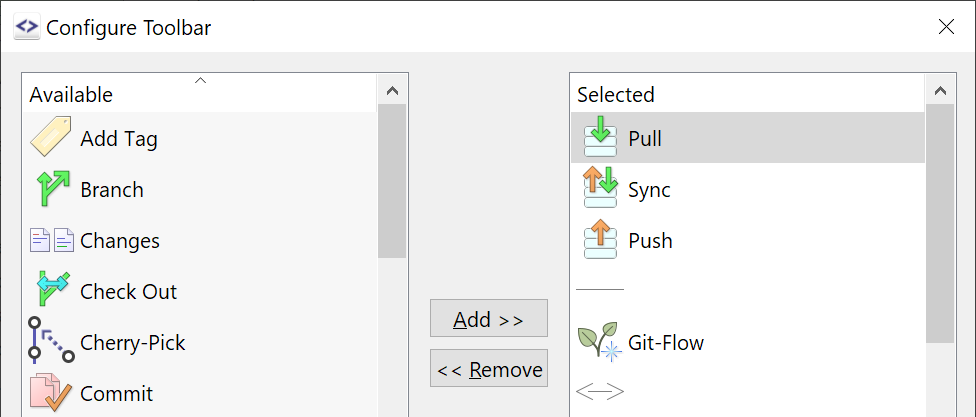
- Toolbars,
- Light and dark themes